Understanding Git : insideout
When you first hear about Git, it often sounds complicated - lots of commands, strange words, and rules.
But Git is actually built to solve a very simple problem:
How do developers safely track changes in code over time?
Let’s understand Git step by step using the diagrams below.
What is Git?
Git is a version control system.
In simple words, Git helps you:
keep a history of your code by creating and storing objects not codebases.
save different versions safely.
go back to older versions if something breaks.
Instead of copying folders like project_final or project_final_v2, Git manages everything for you automatically.
Why Git Is Used
Developers use Git because:
Code changes all the time
Mistakes happen
Multiple people work on the same project
Git makes sure:
a. Nothing is lost so that if enything goes wrong then we can revert to previous version without any issues.
b. Every change is recorded so that everyone can be accountable in team.
c. Teamwork stays organized and it does not become damage control.
Git Basics and Core Terminologies
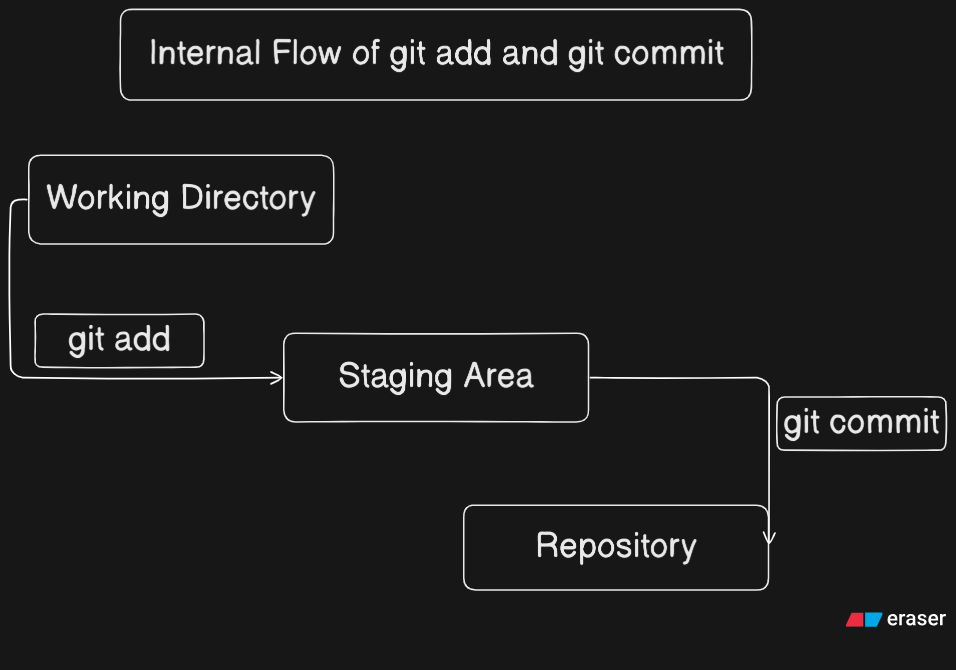
Working Directory, Staging Area, Repository
Look at the first diagram.
This shows how Git handles your code internally.
Working Directory
This is where you write and edit files
Git is not tracking changes yet
Staging Area
When you run
git add, files move hereYou are telling Git:
“I want to include this in the next save”
Repository
When you run
git commit, Git saves a snapshotThis snapshot is stored permanently in history
Git does not save files directly instead, it saves snapshots of your project.
Commit and Commit History
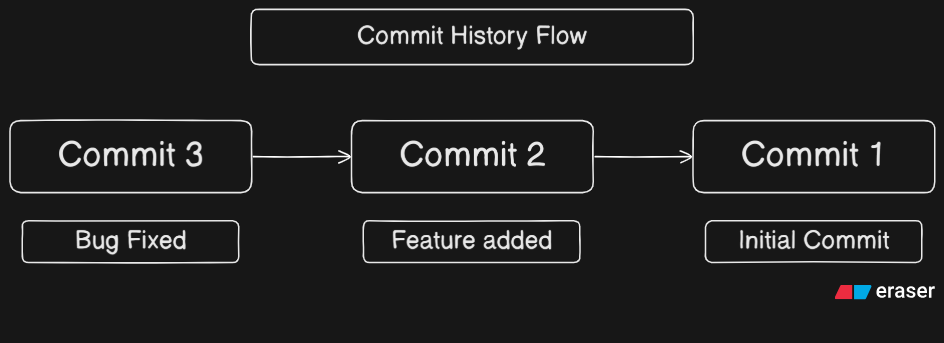
Look at the above diagram: Commit History Flow.
Each box is a commit along with a unique message:
Commit 1 → Initial commit
Commit 2 → Feature added
Commit 3 → Bug fixed
Each commit represents a point in time which points to the previous commit and forms a chain called commit history
This is why you can see old changes, understand what happened when and undo mistakes safely
Core Git Terms (Simple Meaning)
Repository: A project managed by Git
Commit: A saved snapshot of your code
Branch: A separate line of development
HEAD: Points to where you are currently working
You don’t need to memorize these - they make sense as you use Git.
Common Git Commands
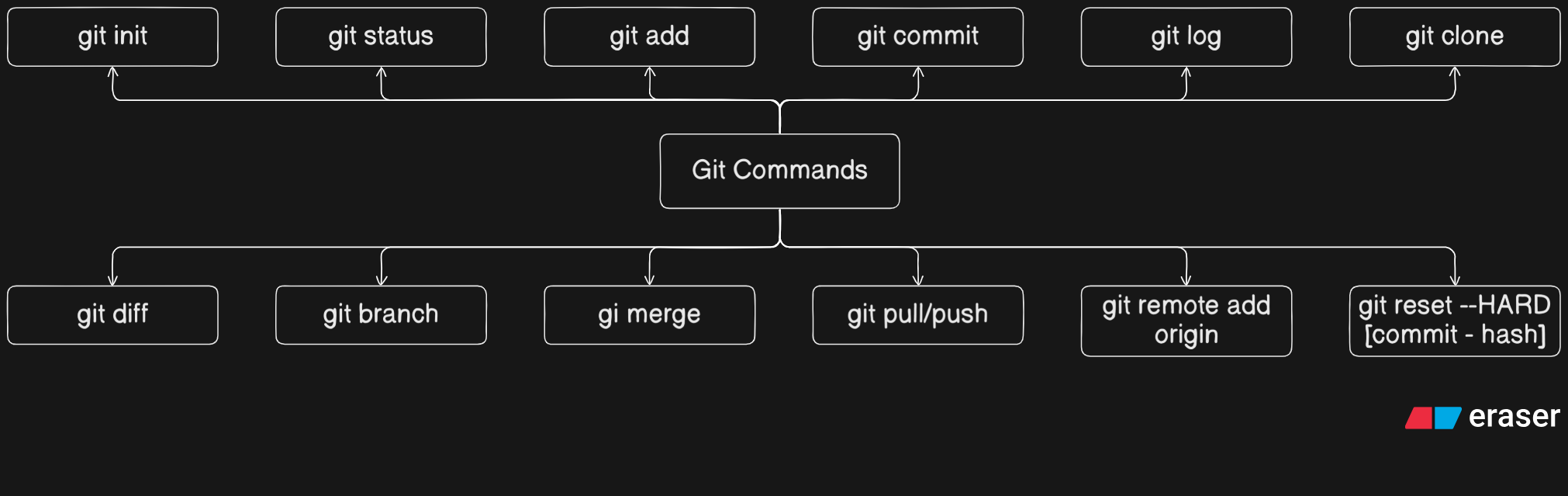
The third diagram shows commonly used Git commands and how they fit together.
Basic Commands
git init: Starts Git tracking in a foldergit status: Shows what has changedgit add: Moves changes to the staging areagit commit: Saves changes permanentlygit log: Shows commit history
Other Useful Commands
git diff- see changesgit branch- manage branchesgit merge- combine workgit pull / push- sync with remotegit clone- copy a repository
A Simple Git Workflow (From Scratch)
First create a project folder
Run
git initWrite some code
Run
git statusStage changes using
git addSave them using
git commitRepeat as you improve the project
That’s it. This loop is Git.
Conclusion
So we get to know that - Git is not about commands.
It’s about tracking progress.
Once you understand:
working directory
staging area
commits and history
Git becomes predictable, not scary.
Learn the flow, not the fear -
and Git will feel like a helpful assistant, not a burden.